Track your Claude Code cloud sessions
Claude Code sessions in the cloud run where the ShellTime daemon can't see them. A network secret and one setup script line bring them into ShellTime.
Claude Code doesn't only run in your terminal anymore. Sessions you start at claude.ai/code, in the Claude desktop or mobile app, or with claude --cloud run in a cloud environment: a fresh virtual machine hosted by Anthropic. The ShellTime daemon on your laptop never sees them, so until now they were missing from ShellTime.
They don't have to be. A cloud environment has a setup script and network secrets, and with those two it can install ShellTime by itself and sign in without your token ever entering a session. Every session in it then reports to your account like the ones on your machine: prompts, tokens, cost, models and tool calls.
How it works
- One line in the setup script runs ShellTime's cloud setup, which downloads the ShellTime CLI and daemon and points Claude Code's telemetry at the daemon. Anthropic saves the environment as a snapshot after setup, so this runs once, not in every session.
- The snapshot keeps files but no running processes, and the machine has no systemd to start the daemon. So the script also adds a SessionStart hook to Claude Code, which signs in and starts the daemon each time a session starts.
- A network secret holds your ShellTime token. Anthropic's agent proxy adds it to the daemon's requests to
api.shelltime.xyzafter they leave the virtual machine, so the token is never inside a session: not in its environment variables, not in a file, and not where Claude could read it. A network secret's host is reachable whatever the environment's network access, so you don't need to allowapi.shelltime.xyzeither.
Anthropic's documentation notes that Claude Code's own telemetry export never gets a network secret. That doesn't affect ShellTime: Claude Code sends its telemetry to the ShellTime daemon on the same machine, and the daemon uploads it with ordinary HTTPS requests, which do go through the agent proxy.
Set it up
You need a ShellTime account and a Claude plan with Claude Code on the web (Pro, Max, Team or Enterprise), in an environment hosted by Anthropic. On Pro, Max and Team you can add network secrets to your own environments; on Enterprise it takes an organization admin role. If you can't add one, see Without network secrets.
- Create an API token
In ShellTime, open the menu under your avatar and choose API Tokens. It's also in Settings, under Integrations. Click New Token and give it a name that says where it lives, like
claude-code-cloud, so you can revoke it on its own later. A name takes letters, digits and dashes.shelltime.xyz/users/you/settings/open-token
Add a new Token
Token Name
claude-code-cloud
Token Description
What will this token be used for?
Never expire
CancelTry it: name the token and click Create. ShellTime copies the new token to your clipboard and shows it only once, so keep it at hand for the third step.
- Open your cloud environment
At claude.ai/code, on the screen where you start a new session, click the environment selector: the first control in the row under the message box. Under Cloud, hover over the environment you use (Default if you never made another) and click the settings icon on its right.
claude.ai/code
Describe a task or ask a questionyou/your-repomainAutoOpus 5.5Search environments…
LocalDownloadDesktop only
Cloud
DefaultTry it: click the settings icon next to the environment, then explore its settings. In a session that's already running, click the arrow after the session's title and choose Edit cloud environment instead.
- Add your token as a network secret
Click Network secrets, then Add secret. Add to already names this environment. Keep the Secret type at Bearer and fill in:
- Allowed websites:
api.shelltime.xyz - Path prefixes: leave it empty.
- Custom headers: keep
Authorizationas the header's name, change its Prefix fromBearertoCLI, and paste the token from the first step as the Value.
claude.ai/code
Add secret
Create an account for Claude, enter its secret, and choose where it applies. If the service offers one, use a secret with only the access Claude needs, because Claude can use it for any request to its hosts.
Add to
Environment: DefaultSecret type
BearerAllowed websites
api.shelltime.xyzClaude will only send this app’s keys to these websites. To allow all subdomains, use * at the start (*.example.com).
Claude will be allowed to reach this host with this secret.
Path prefixes (optional)
/api/v1/Narrow the auto-created allow rule to requests under these paths. Leave empty to allow the whole host.
Custom headers
Added to every request Claude sends to the allowed websites. Use the header name from your API’s docs, such as Authorization or X-API-Key, and leave Prefix empty if the API takes the key alone.
Header namePrefixValueAuthorizationCLIYour ShellTime tokenAdd header
See resolved curl example
curl https://api.shelltime.xyz \
  -H "Authorization: CLI ***"
A space is added between the prefix and secret (Bearer ***). Prefixes ending in = attach directly (token=***).
The form filled in for ShellTime. Open the resolved curl example to see the header the proxy adds, then click Add. Click Add. The secret is saved right away, and its value can't be shown again.
- Allowed websites:
- Add the setup script
Add this line to Setup script, below anything that's already there, then click Save changes.
bash curl -fsSL https://raw.githubusercontent.com/shelltime/installation/main/cloud.bash | bashclaude.ai/code
Setup script
Bashcurl -fsSL https://raw.githubusercontent.com/shelltime/installation/main/cloud.bash | bash0.1 KB
Runs when a new session is started, before Claude Code launches. The result is cached so future sessions start quickly.
Archive environmentThe line goes at the end of the setup script. Save changes when it’s in. It runs cloud.bash from ShellTime's public installation repository, where the regular installer lives too. It never breaks your environment: if anything fails, it prints what went wrong and lets the rest of your setup carry on. Your sessions still start, they just aren't tracked.
The script and the CLI come from GitHub. On Limited network access, keep Allow package managers ticked so GitHub stays reachable.
- Start a session
Start a new cloud session in that environment and send a prompt. The first session after you save runs the setup script, so it takes a few seconds longer to start; later sessions start from the saved snapshot.
About a minute after your first prompt, the session shows up under Coding Agent in ShellTime, next to the ones from your own machines. A Cloud badge marks it, and its page links back to the session on claude.ai.
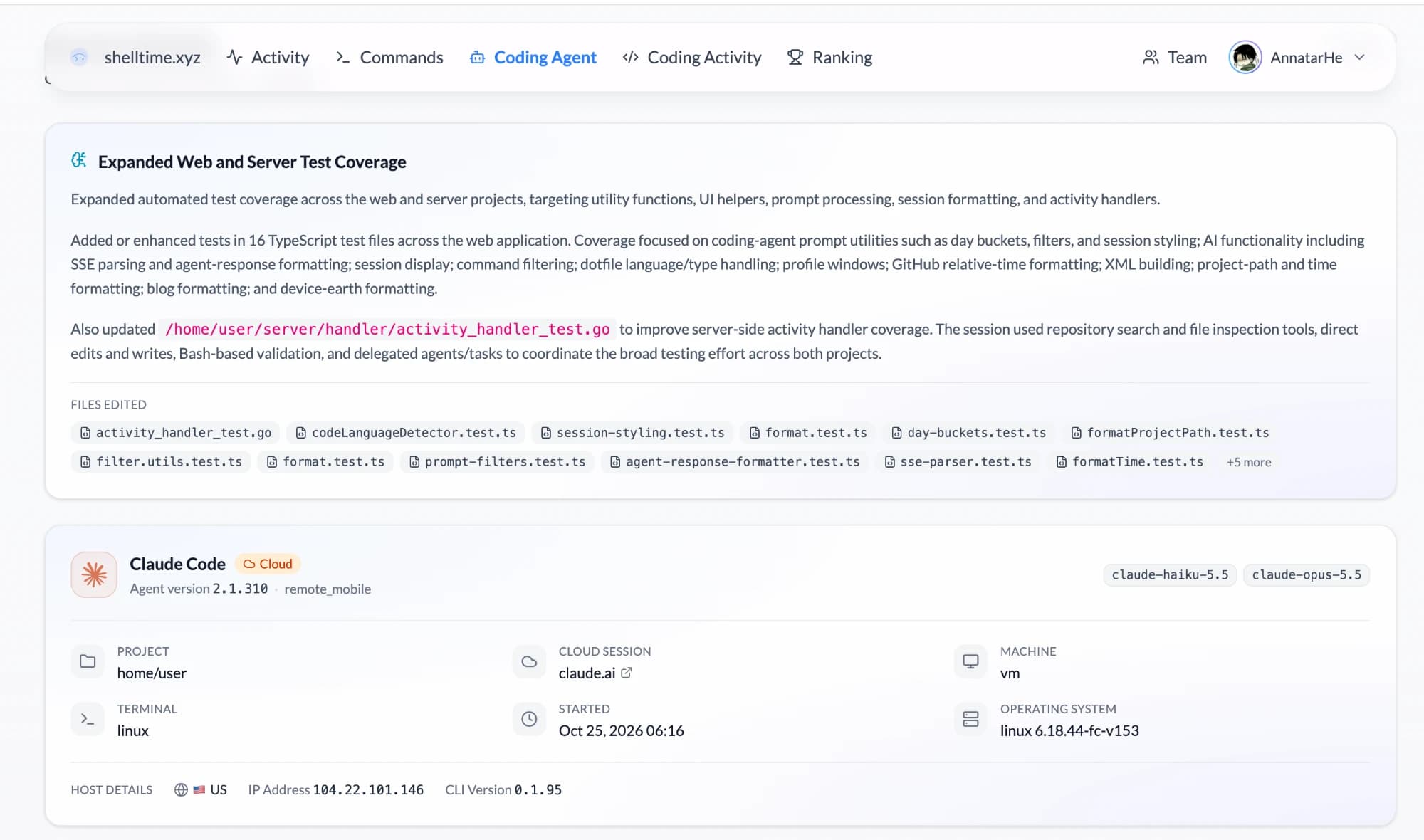
A cloud session in ShellTime: the AI summary, the Cloud badge and the link back to claude.ai. To check the setup from inside the session, ask Claude to run
shelltime doctor. Its Account section says the token is a network secret and which ShellTime account it signed in as.If you've installed the ShellTime GitHub App, the pull requests a tracked cloud session opens get the cost comment too, headed ☁️ Claude Code cloud.
Without network secrets
Network secrets exist only in environments hosted by Anthropic, can't be saved in organizations that use customer-managed encryption keys, and on Enterprise need an organization admin role. On a Team plan without that role, the shorter Add secret form has no prefix field. In those cases, keep the token in an environment variable instead:
- In Environment variables, add
SHELLTIME_TOKEN=st_v1_your_token. The hook signs in with it whenever it's set. - On Limited network access, add
api.shelltime.xyzto Allowed domains and keep Allow package managers ticked, or set it to Full.
Anyone who can use the environment can read its variables, so do this only in an environment of your own.
No session showing up?
- The session started before you saved. A session that was already running keeps the environment it started with. Start a new one.
- Ask Claude to run
shelltime doctor. It checks the token through the agent proxy, just like the daemon's uploads. "No token reached the server" means the environment has no ShellTime secret, or the proxy isn't sending it: look for a Not sent note under the secret, and check that its website is exactlyapi.shelltime.xyz. "The server rejected your token" means the prefix isn'tCLI, or the token was revoked. shelltimeisn't installed. Then the line didn't run, or couldn't download the script or the CLI: check that it's in this environment's setup script and that GitHub is reachable (Allow package managers ticked on Limited network access, or Full).- Another environment. Each environment has its own settings. Sessions in an environment without this setup aren't tracked, so repeat the steps for each one you use.
Questions or ideas? Email us at [email protected].
- #claude-code
- #cloud
- #getting-started
Start tracking in a minute
Install the ShellTime CLI to see your shell commands, AI coding sessions and editor time in one place.
Install ShellTime